
2026年10月15日、Foody Pocket POS ver. 8.0.8 をリリースしました。タブレットとハンディの画面を全面的に新しいデザインにし、販売管理(売り切れ・準備中)、現金券でのお支払い、新しい注文伝票に対応しました。8月の ver. 8.0 以降、ver. 8.0.5〜8.0.7 で行った改善もあわせてお知らせします。
On 15 October 2026 we released Foody Pocket POS ver. 8.0.8. The tablet and handy screens have been fully redesigned, and the POS now supports sales status (sold out / preparing), payment by cash voucher and a new kitchen ticket layout. This note also covers the improvements made in ver. 8.0.5 to 8.0.7 since ver. 8.0 in August.
ご利用にあたって
本バージョンをご利用いただくには、POS アプリの更新が必要です。更新方法は担当者よりご案内いたします。
This version requires a POS app update. Your account manager will guide you through it.
01タブレット画面を新しいデザインにしました
NEWタブレット画面のリデザイン
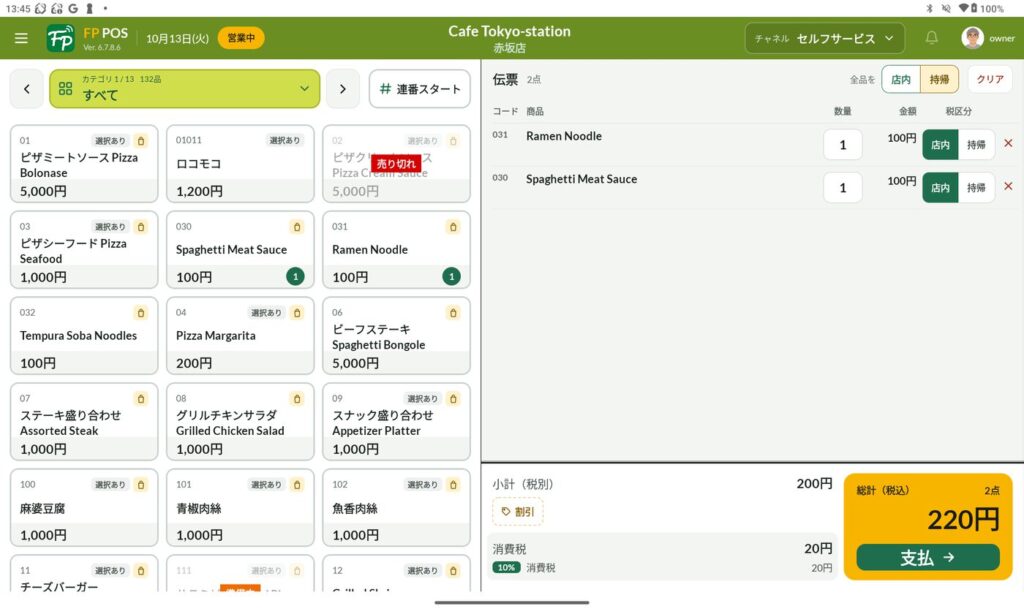
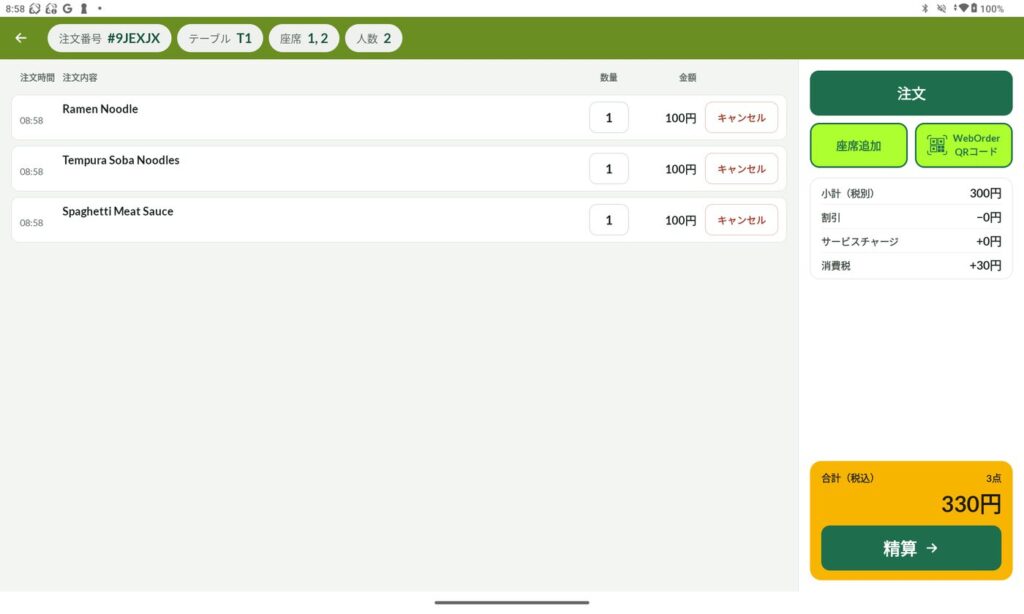
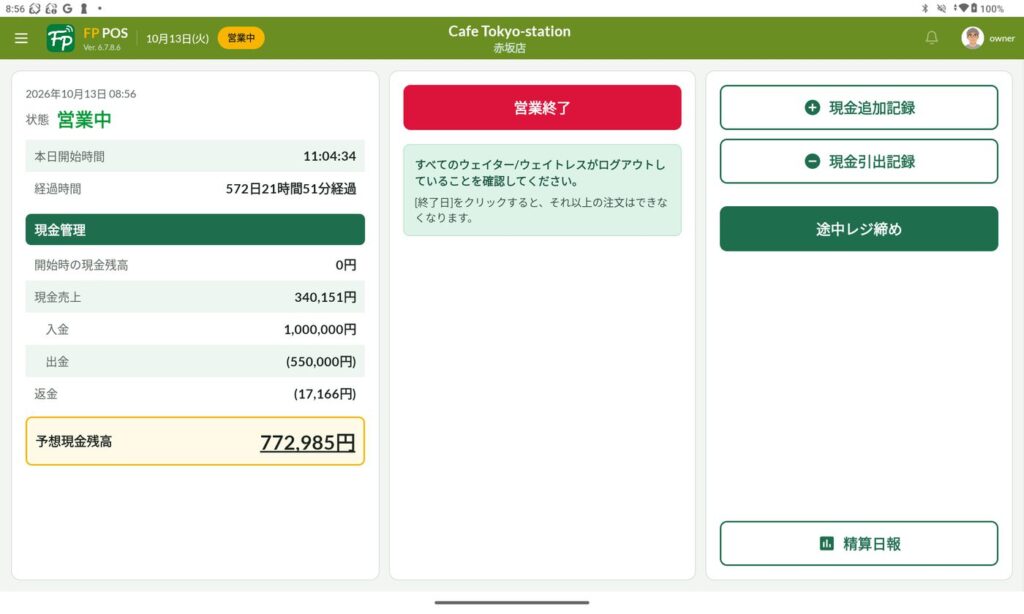
レジ、イートイン(座席表・注文・精算)、注文管理、注文リスト、レジ締め、プリンター設定、各種設定の画面を新しいデザインにしました。レジ画面は、左に商品、右に伝票と合計を並べ、明細ごとに店内・持帰を切り替えられます。
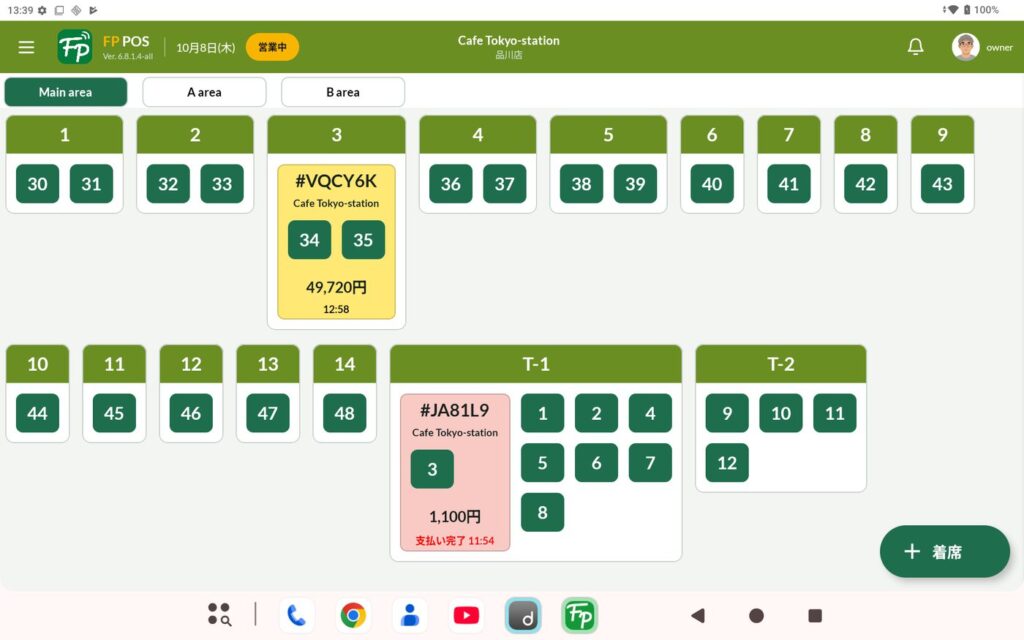
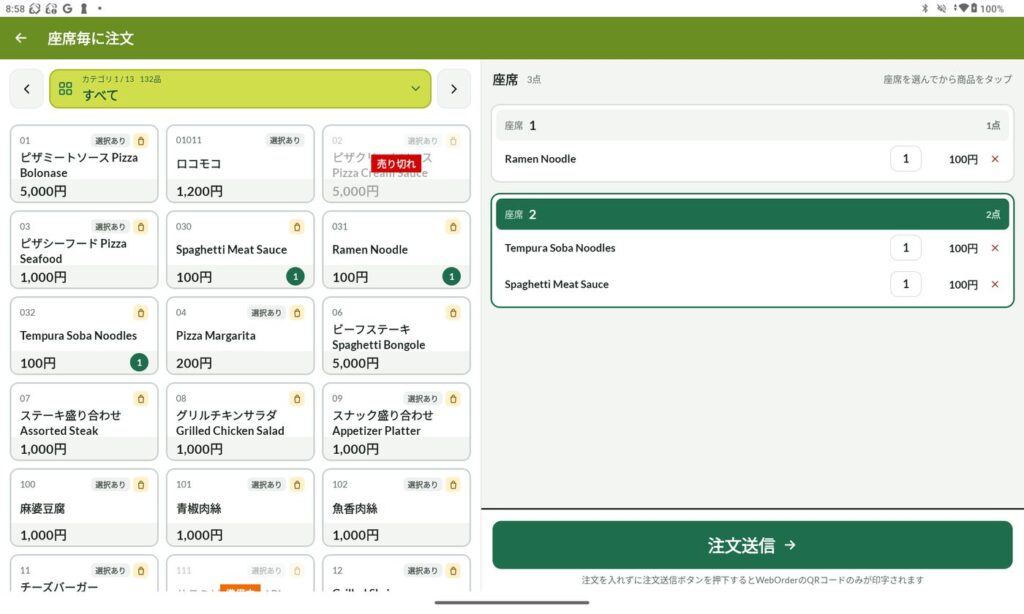
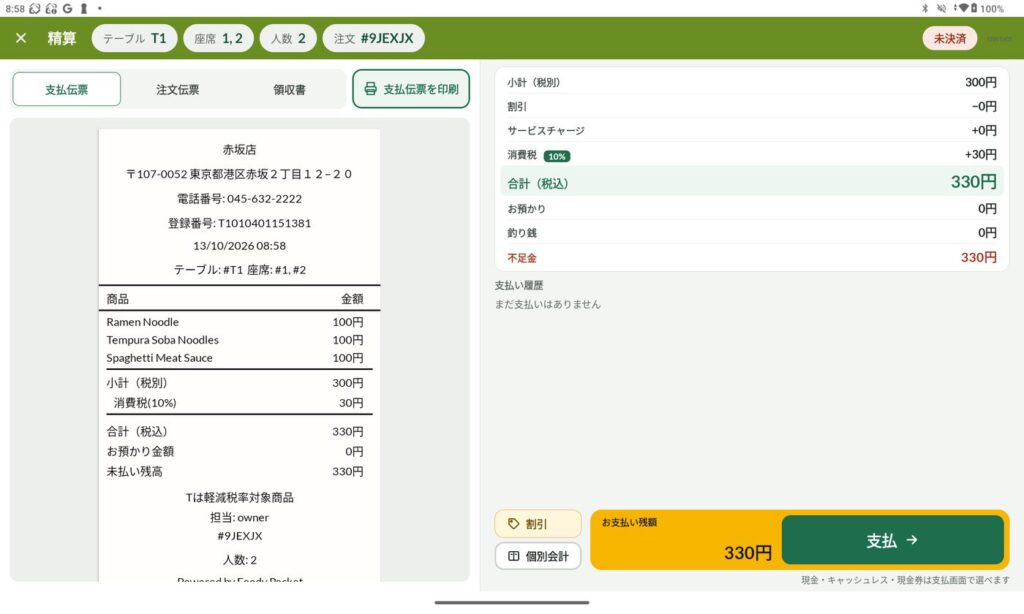
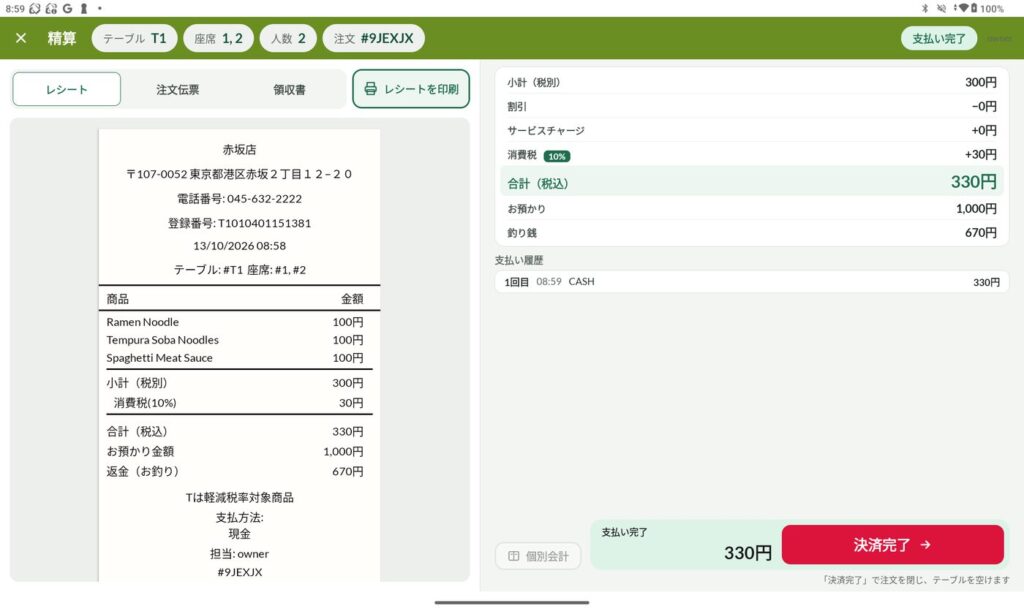
イートインは、席ごとの注文 → 注文内容の確認 → 精算 → 支払完了の順に進みます。精算画面では、左に支払伝票・注文伝票・領収書のプレビュー、右に金額の内訳と支払い履歴を表示します。
NEW新しいヘッダー・メニュー・ログイン画面
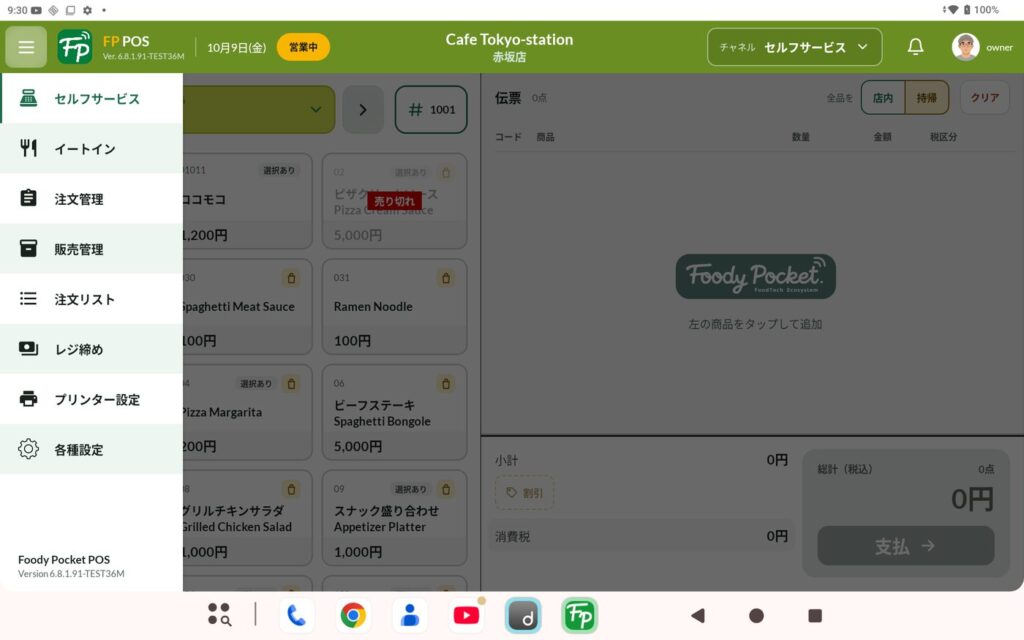
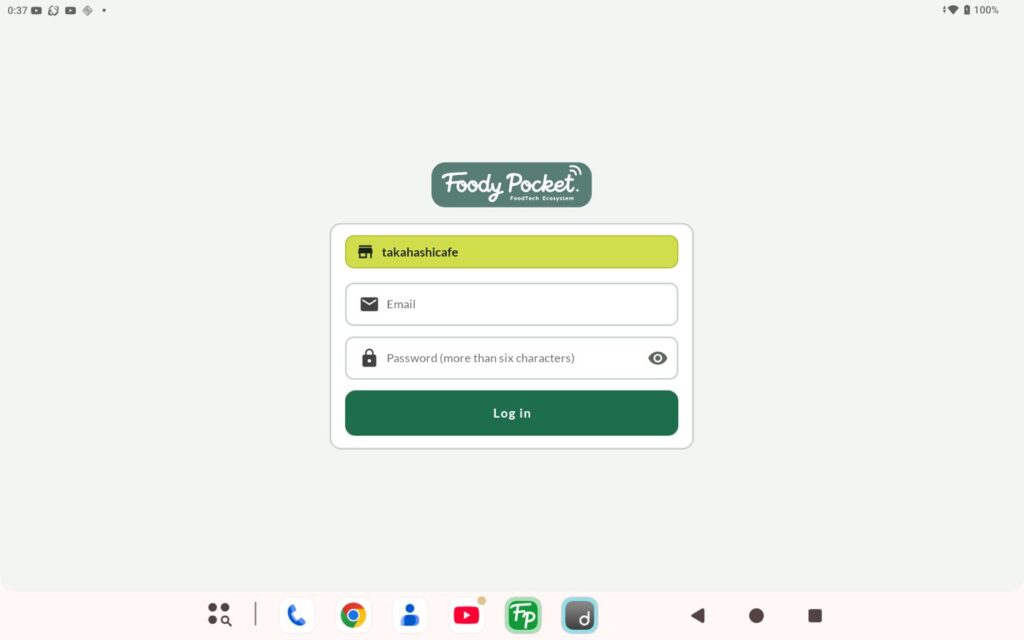
ヘッダーに日付・営業状態・店舗名・チャネル・通知をまとめました。チャネルの表示名「店内/POSレジ」は「セルフサービス」に変わります。ログイン前の画面も同じデザインにそろえました。
02販売管理で売り切れ・準備中を切り替えられます
NEW販売管理(販売中/売り切れ/準備中)
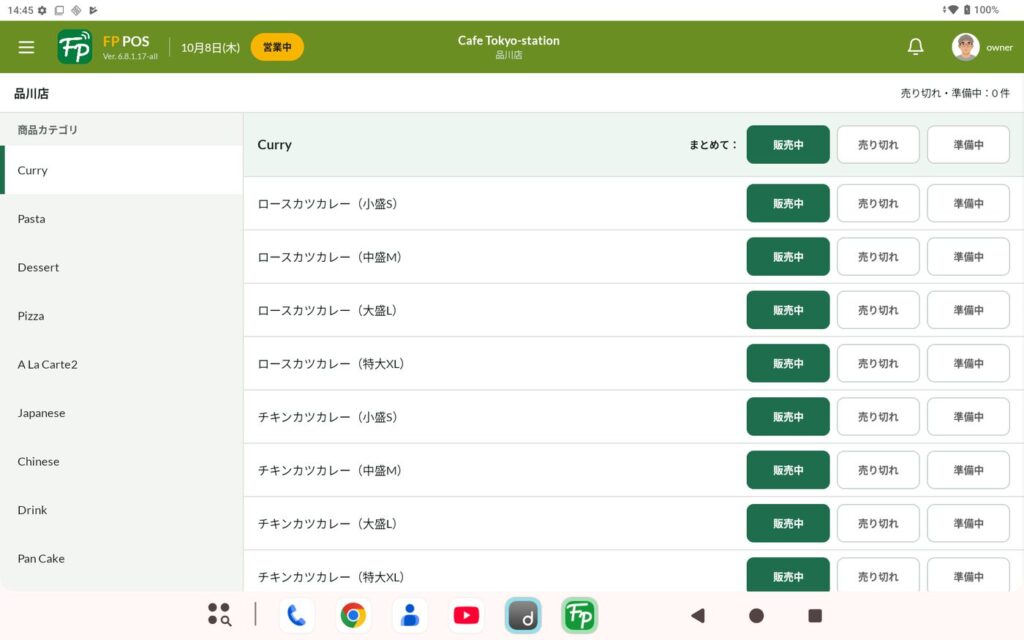
売り切れの商品・準備中の商品を選んで、POS と WebOrder に反映できるようになりました。商品は消さず、ステータスを表示します。設定は店舗ごとに行い、オプションの選択肢やカテゴリ単位でも切り替えられます。売り切れ・準備中は、翌日にレジをスタートするときにすべてリセットされます(レジ締めの時点ではありません)。これまでの「店内在庫管理」に代わる画面です。
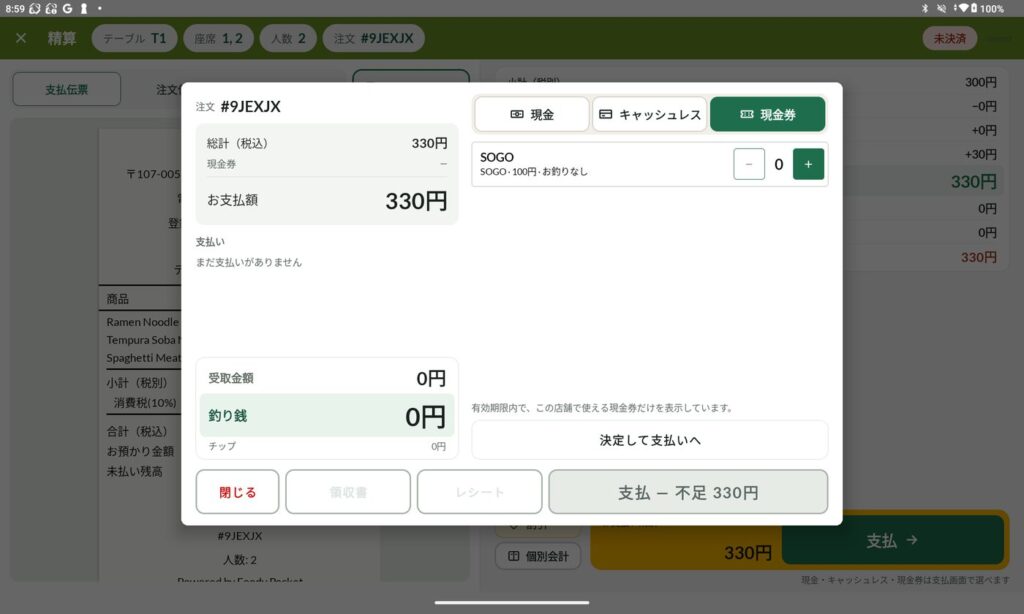
03支払画面を新しくし、現金券でお支払いできます
NEW支払画面のリデザイン・現金券でのお支払い
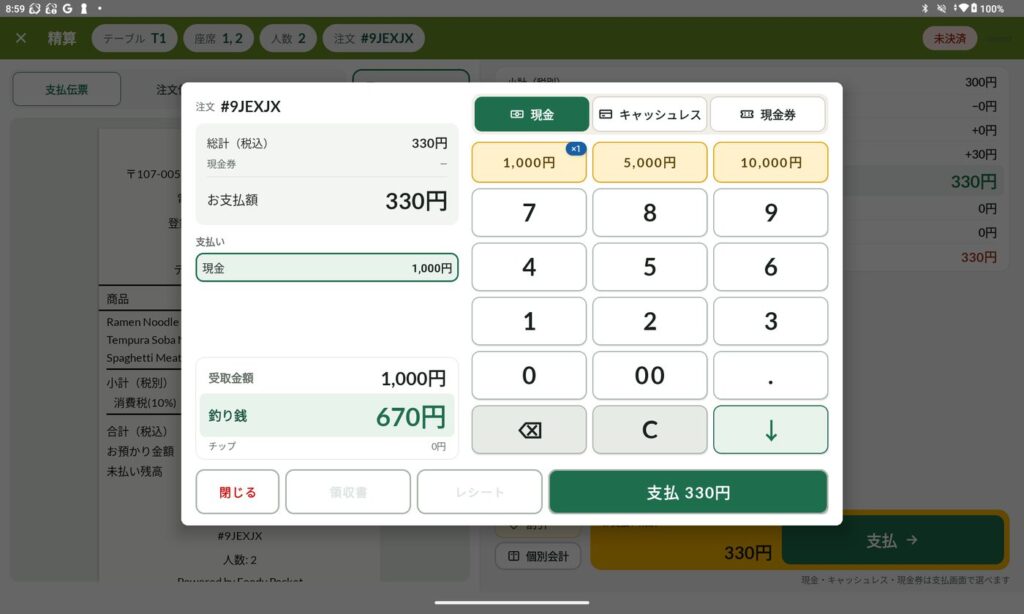
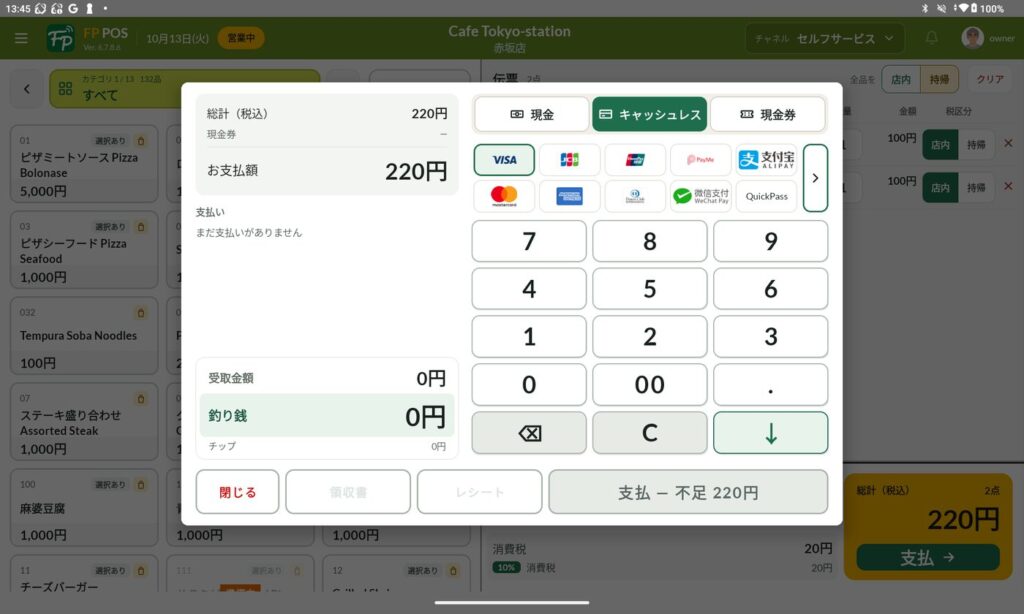
支払画面を「現金・キャッシュレス・現金券」の 3 つに分けました。現金券は種類ごとに枚数を入れて支払いに充てられます。現金の金種ボタンは、入力済みの金額に足していく動きになります。
04注文伝票を新しいレイアウトにしました
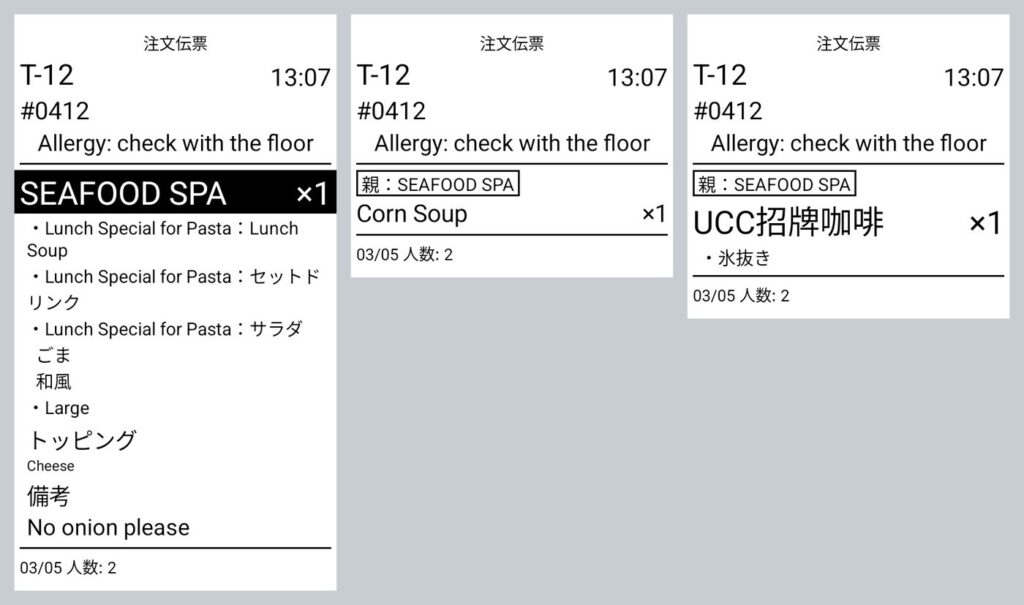
NEW注文伝票の新しいレイアウト
管理コンソールの伝票印字設定に従って、表示名・文字の大きさ・白黒反転で印字します。オプションを別の伝票に分けたときは「親:商品名」を印字します。
05ハンディ(スタッフ用スマホ)を新しいデザインにしました
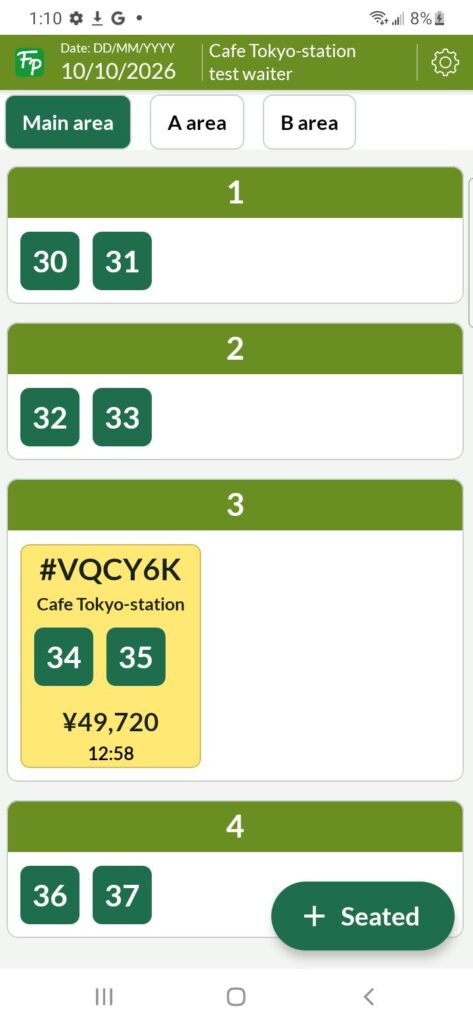
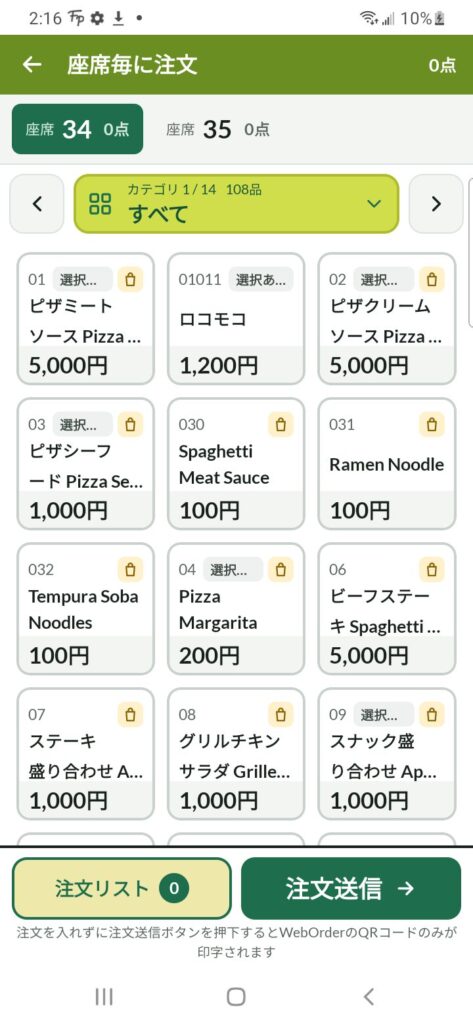
NEWハンディ(スタッフ用スマホ)のリデザイン
ハンディの座席表・注文・精算・支払の画面を、タブレットと同じデザインにしました。ハンディから入れた新規注文の伝票は、レジ側のプリンターから印字されます。
06そのほかの新機能
- 不足のある注文を「未収」として閉じる:個別会計で不足が残った注文を、管理者が未収として記録して閉じられます。
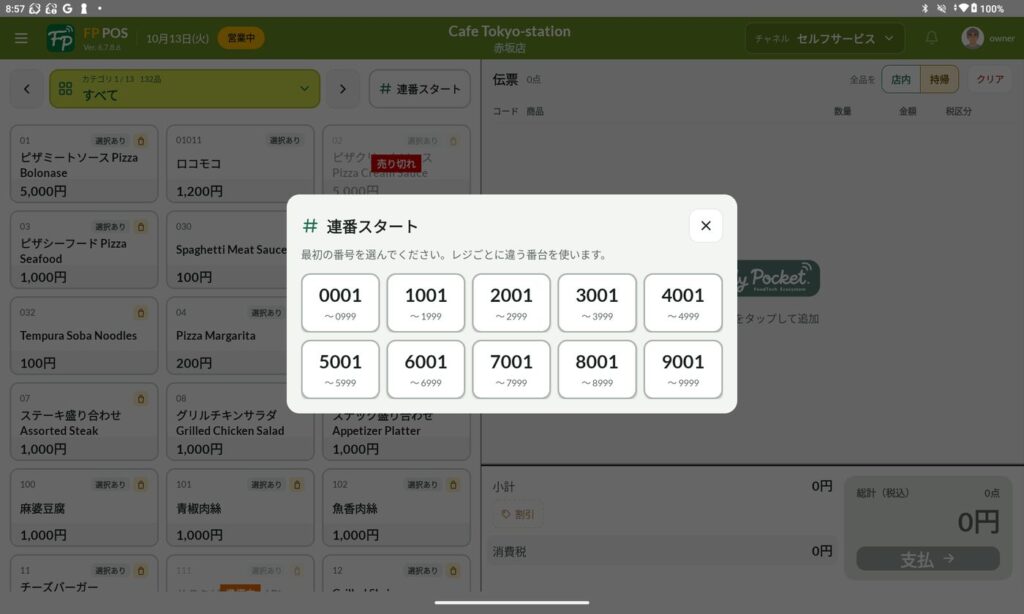
- レシート連番:セルフサービスの商品の受け渡しで照合に使える連番を、レジ画面から開始できます。
- WebOrder 用 QR 伝票の作り直し:紙を短くし、テーブル番号を先頭に印字します。
- 支払方法「Delivery Service」:デリバリー業者のアプリで決済済みの注文を、レジで処理できます。
Receipt serial numbers: Start a serial number from the register screen, to match receipts with items at the Self-Service pickup.
Redesigned QR slip for WebOrder: Shorter paper, with the table number printed first.
Payment method “Delivery Service”: Orders already paid in a delivery provider’s app can be handled at the register.
NEWレシート連番の開始画面
レジ画面の「連番スタート」から、最初の番号を選びます。レジごとに違う番台(0001〜、1001〜 など)を使います。
07ver. 8.0.5〜8.0.7 で改善した内容
- レシート印字の刷新:文字の仕上がりをきれいにし、58mm 幅のプリンターにも対応しました。
- 印字に失敗した伝票のお知らせと再印字:失敗時は自動で再試行し、それでも印字できなかった伝票を画面でお知らせします。
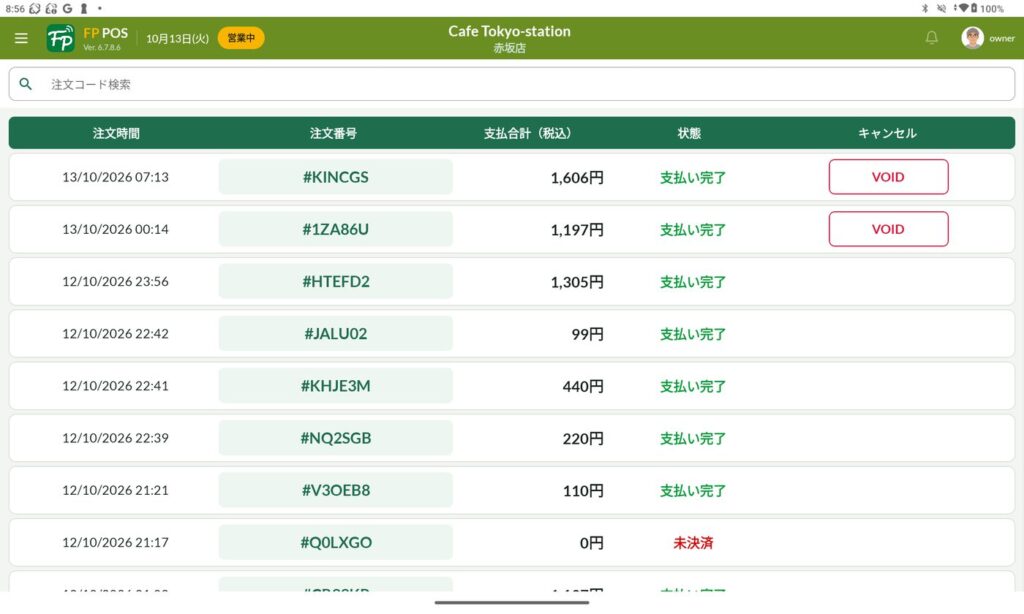
- 支払い済み注文の VOID(取消):注文管理画面から、管理者権限のスタッフが操作できます。
- デリバリー注文の印字の見直し:レシートにチャネル名を印字し、キッチン伝票とポイント用 QR コードは印字しません。
- 個別会計の伝票を見やすく:ロゴを外し、お釣りを印字するようにしました。
- プリンターの割り当て解除:一度割り当てたプリンターを解除できます。
- カテゴリの切り替えをすばやく:カテゴリを押すと、ページが横にスライドする動きなしで商品が表示されます。
- 着席のたびにメニューを読み込み直さない:席ごとの注文画面で、レジ画面が持っているメニューをそのまま使います。
Notice and reprint for slips that failed to print: The app retries automatically, and shows a notice for slips that still could not be printed.
VOID for paid orders: Staff with administrator permission can do this from the order management screen.
Revised printing for delivery orders: The channel name is printed on the receipt. The kitchen slip and the points QR code are not printed.
Clearer split-bill slip: The logo was removed and the change is printed.
Release a printer assignment: A printer that was assigned once can be released.
Faster category switching: When you press a category, the dishes appear without the sideways page slide.
Menu is not reloaded at every seating: The per-seat order screen uses the menu the register screen already holds.
管理コンソール側のアップデート内容は「Foody Pocket 管理コンソール・WebOrder をアップデート」をご覧ください。
For the Admin Console and WebOrder update, please see the accompanying release note.
今後とも Foody Pocket をよろしくお願いいたします。ご不明な点は担当者までお気軽にお問い合わせください。
Thank you for using Foody Pocket. Please contact your account manager if you have any questions.
No responses yet