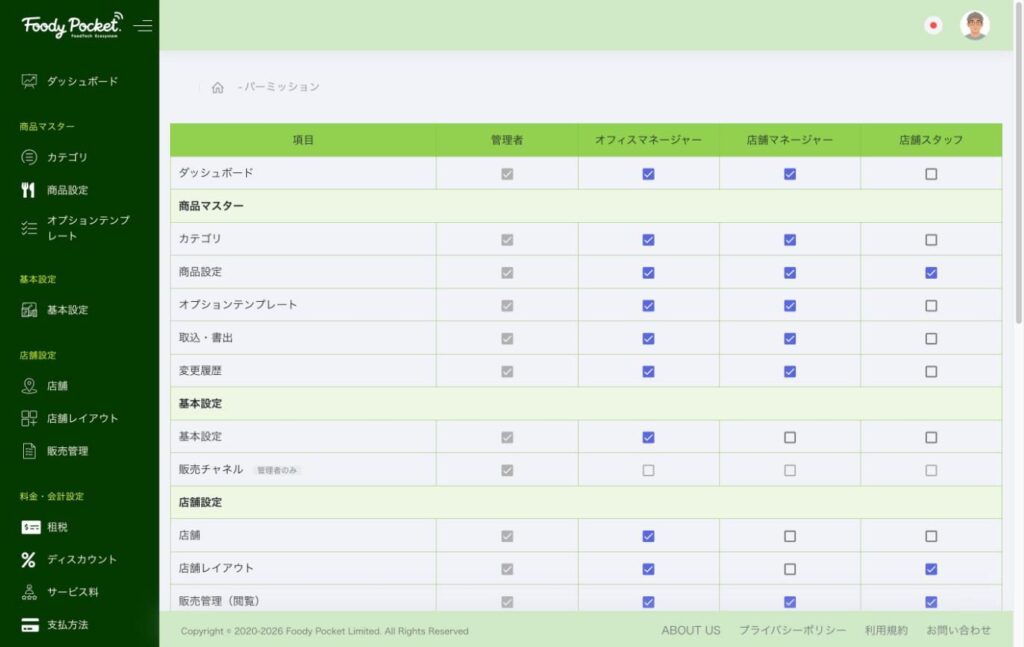
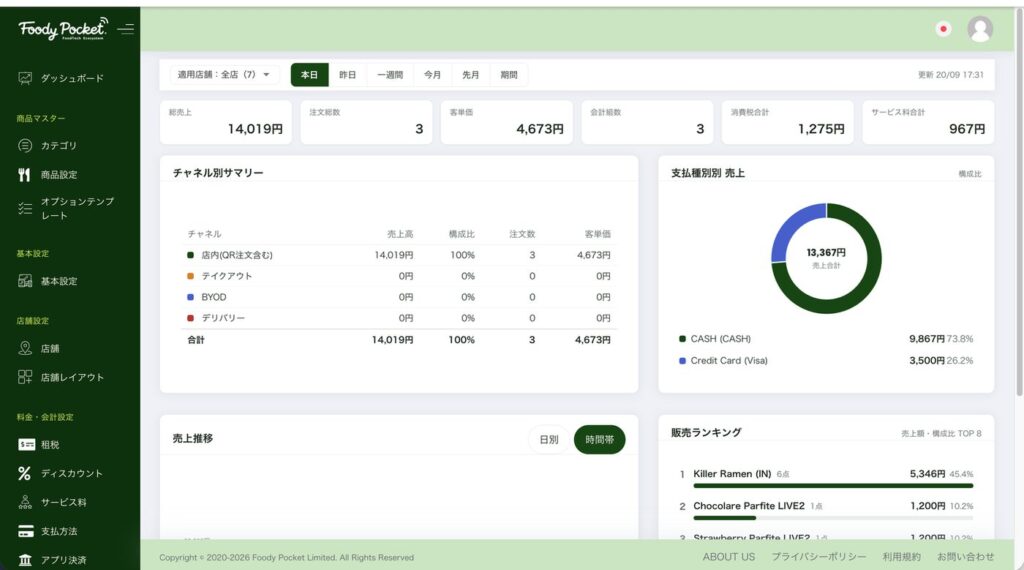
On 15 October 2026 we released an update to the Admin Console and WebOrder. This note covers everything added since the 12 August update, in the releases of 20 September, 25 September and today: cash vouchers, per-dish discount exclusion, linking option items to the dish master, kitchen ticket print settings, sales status management, and rebuilt account and permission settings. On WebOrder, customers can now see “sold out” items and discounts before they order.
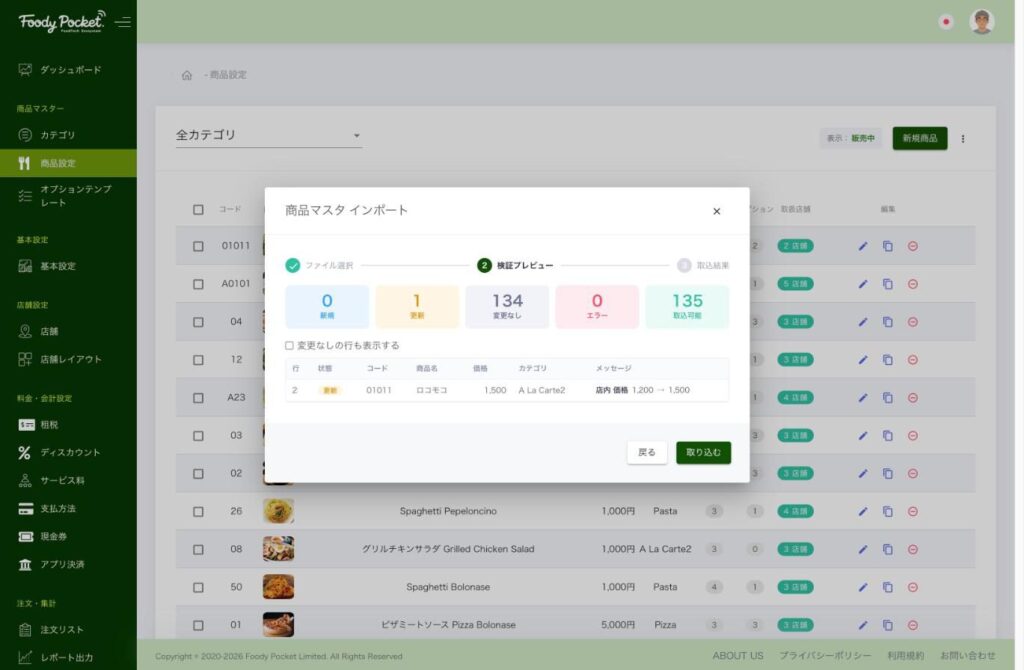
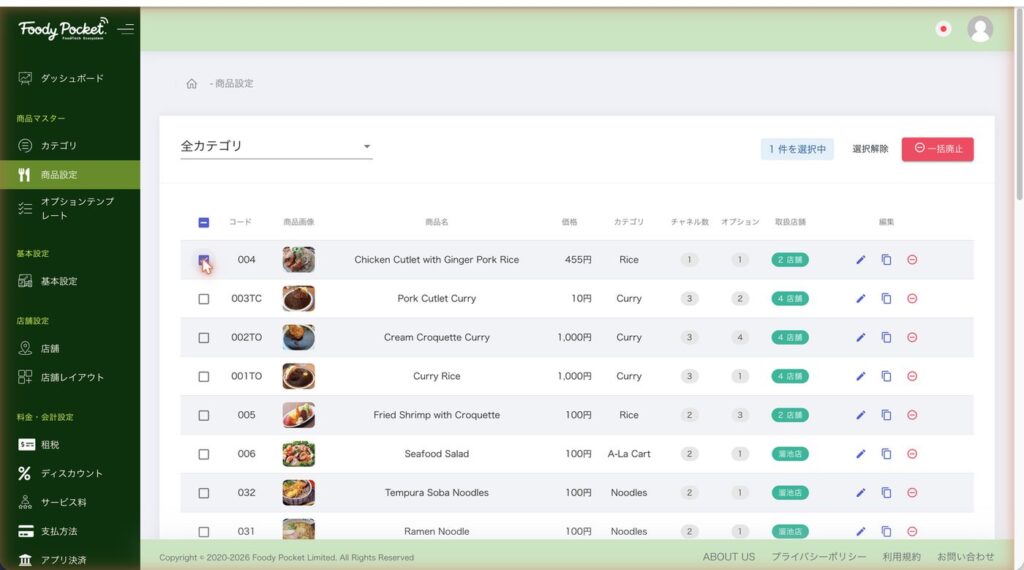
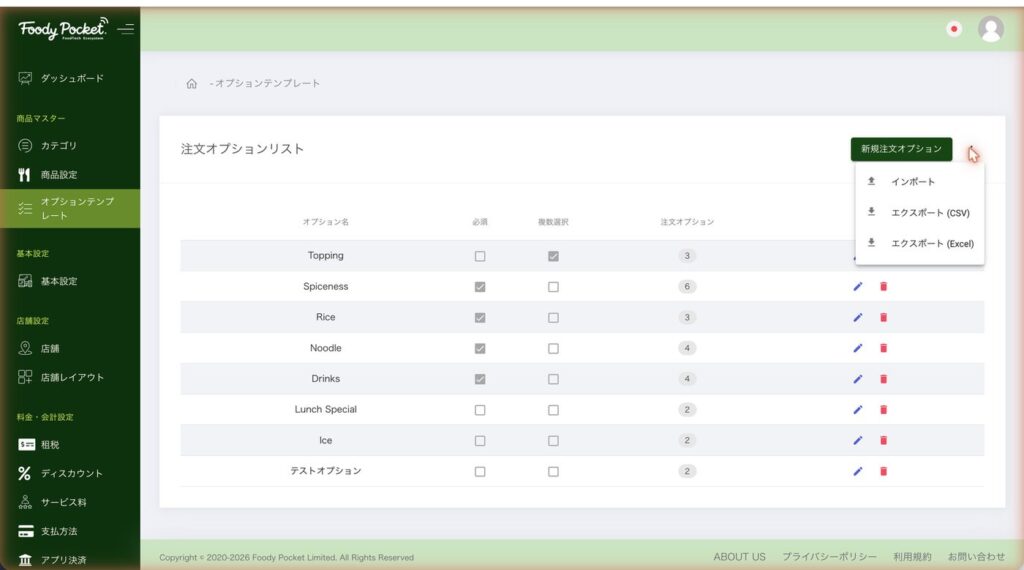
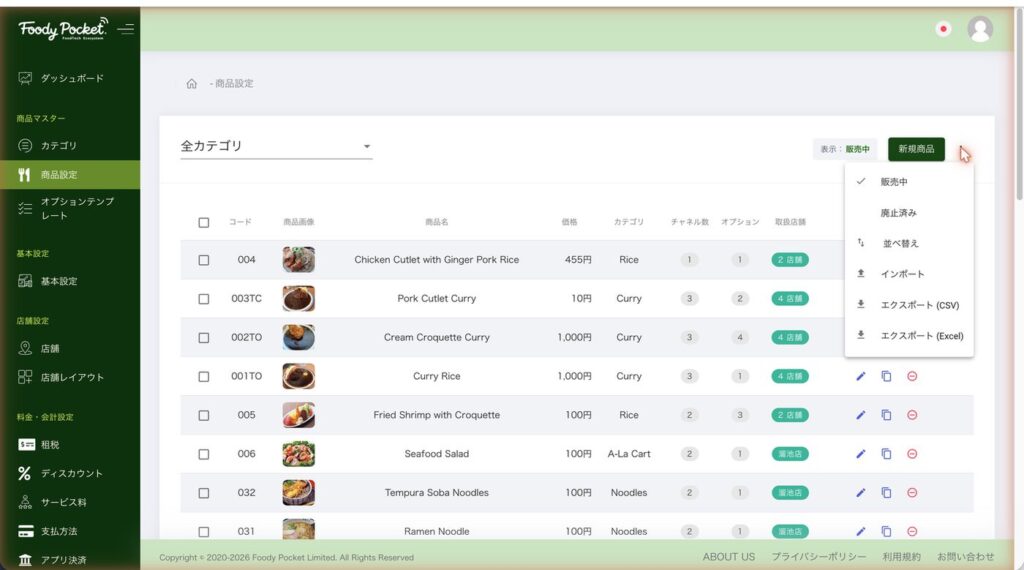
When you import the dish master or option templates, you can check before importing: the number of new, updated, unchanged and error rows, and which item changes in which row.
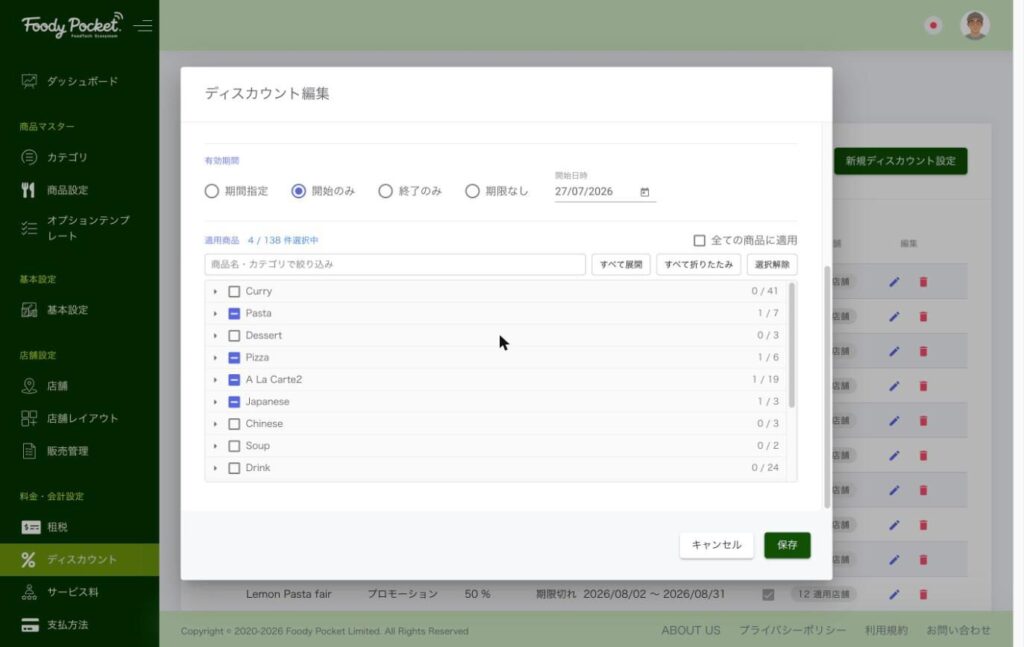
In the discount settings, you now open a category and then choose dishes. The discount edit screen was also tidied so that Save and Cancel are always visible.
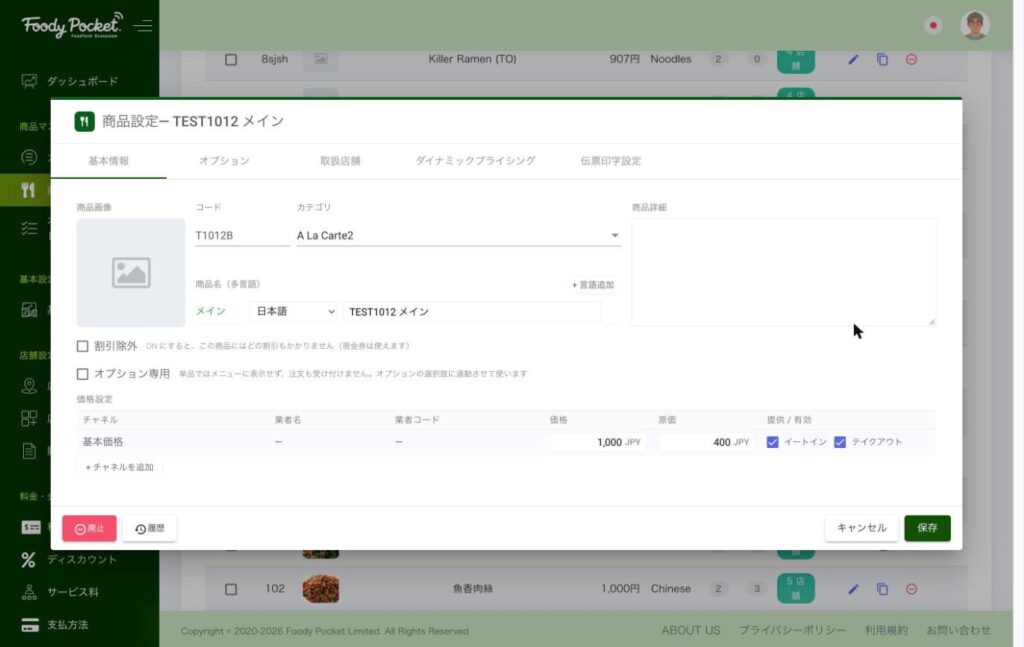
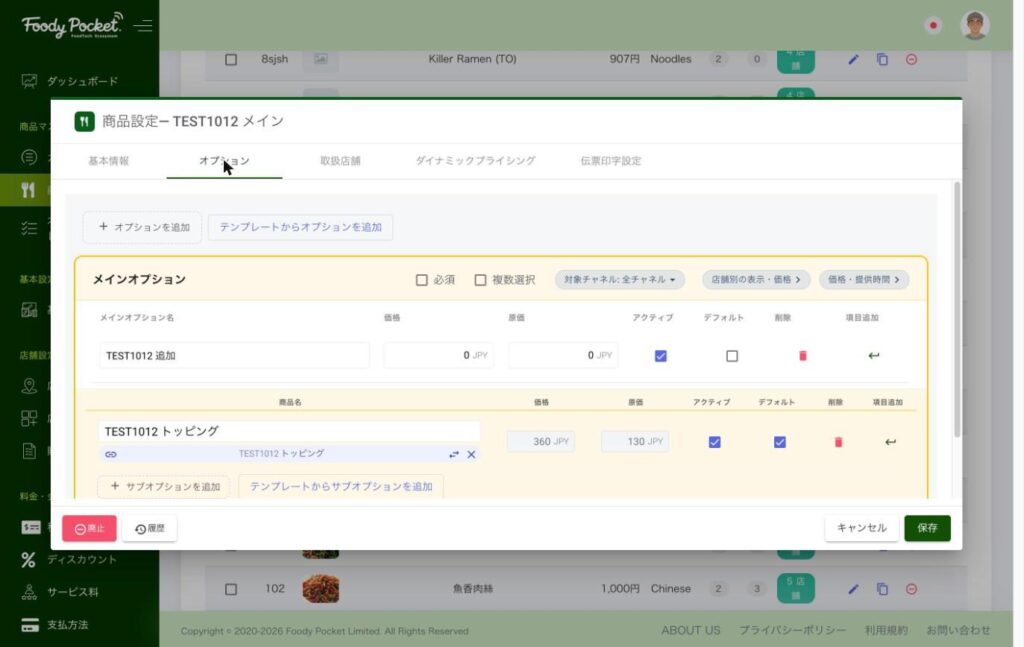
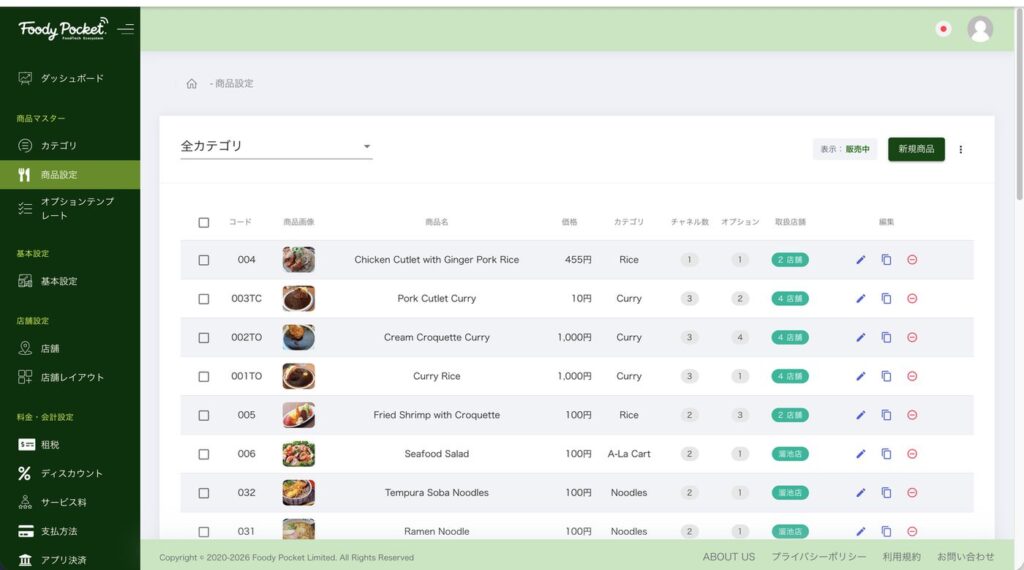
Items used in options, such as drinks, were not linked to each other inside the options, so each one had to be corrected separately. To solve this, even an item used only in options can now be registered in the dish master and changed in one place. A dish with “Option only” selected can be used only inside options and does not appear on the menu. If you set up a set-drink list and similar lists in option templates with this feature in advance, you only change the dish master and everything changes together.
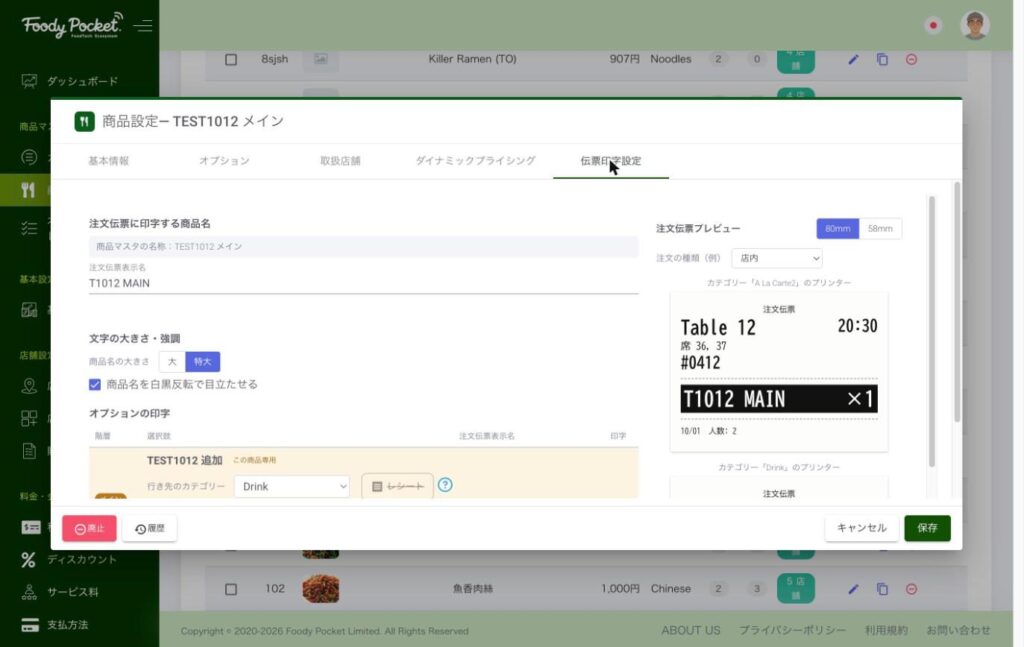
Dishes and option templates have a new tab. You can set the name printed on the kitchen order slip, the text size and black/white inversion, and check the result in the preview.
For each option, you can switch whether it appears on the receipt and the bill. When an option is printed on a separate slip, the parent dish name can be printed too.
NEWオプション表示時間の制御(POS からは時間外も入力可)
ランチスペシャルなど販売時間が制限されている商品やオプションでも、POS レジから手動であれば入力できるようにしました。このスイッチを ON にすると、時間外は WebOrder には表示されず、POS には表示されます。常連のお客様の提供時間外のご要望にも対応できます。
Even for dishes and options with limited selling hours, such as a lunch special, staff can now enter them manually from the POS register. When this switch is ON, the item is not shown in WebOrder outside the hours but is still shown on the POS. This lets you respond to regular customers’ requests outside the serving time.
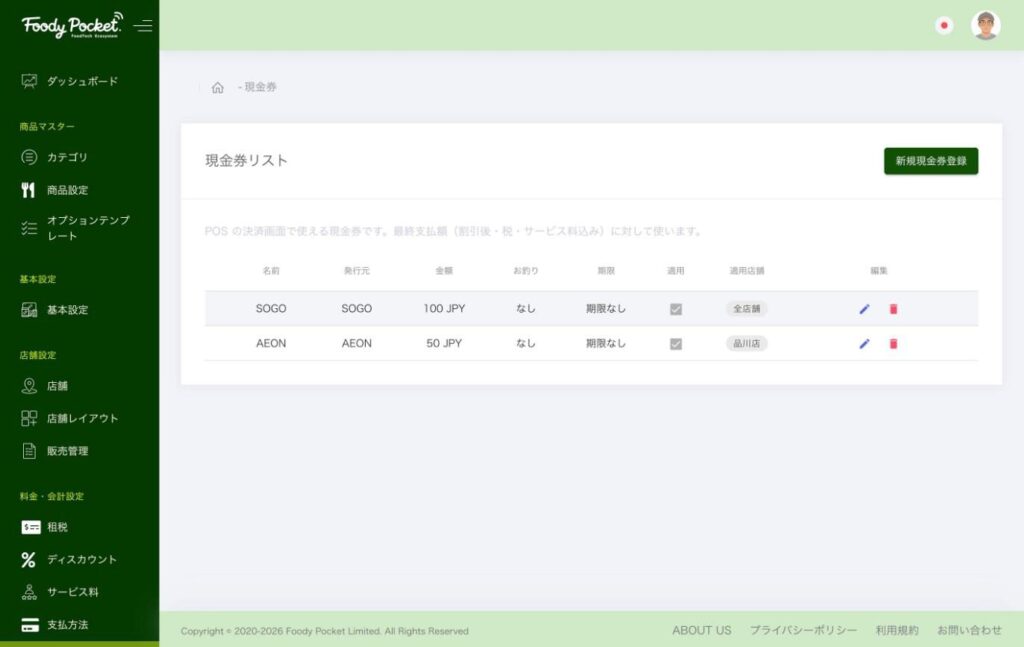
As a new feature, you can register cash coupons and use them as one of the payment methods at settlement. This is a separate settings screen from the discount settings.
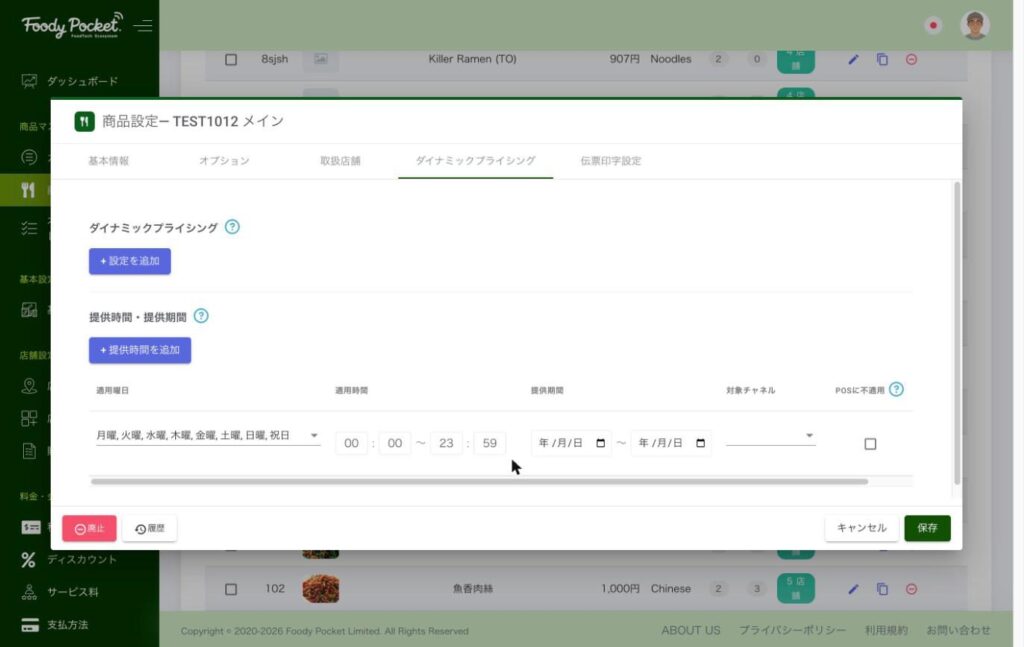
For each dish and option, you can set the days, hours, serving period and channels, and limit when the item is offered. Items outside their serving time do not appear on the menu and cannot be ordered. This is a separate setting from Dynamic Pricing, which only changes the price by time.
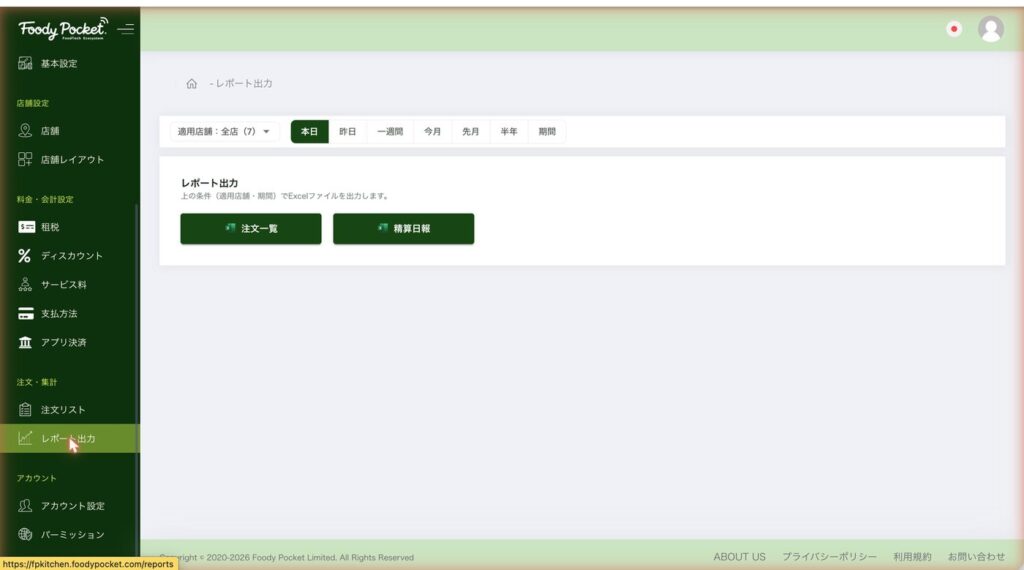
The report screen is now only for Excel export, and the menu name changed to “Report Export”. Choose the branches and the period, then press “Order list” or “Settlement report”. The settlement report Excel now shows the same figures as the dashboard and POS.
レポート出力の画面。適用店舗と期間を選び、注文一覧・精算日報を Excel で出力
NEW商品コードを 10 桁まで入力可能に(8月公開)
商品コードの最大桁数を 5 桁から 10 桁に広げました。
The maximum length of a dish code changed from 5 digits to 10 digits.
NEW店舗 ID の必須化(8月公開)
店舗の登録で店舗 ID を必須にしました。既定値として「001」が自動で入ります。
A branch ID is required when you register a branch. “001” is entered automatically as the default.
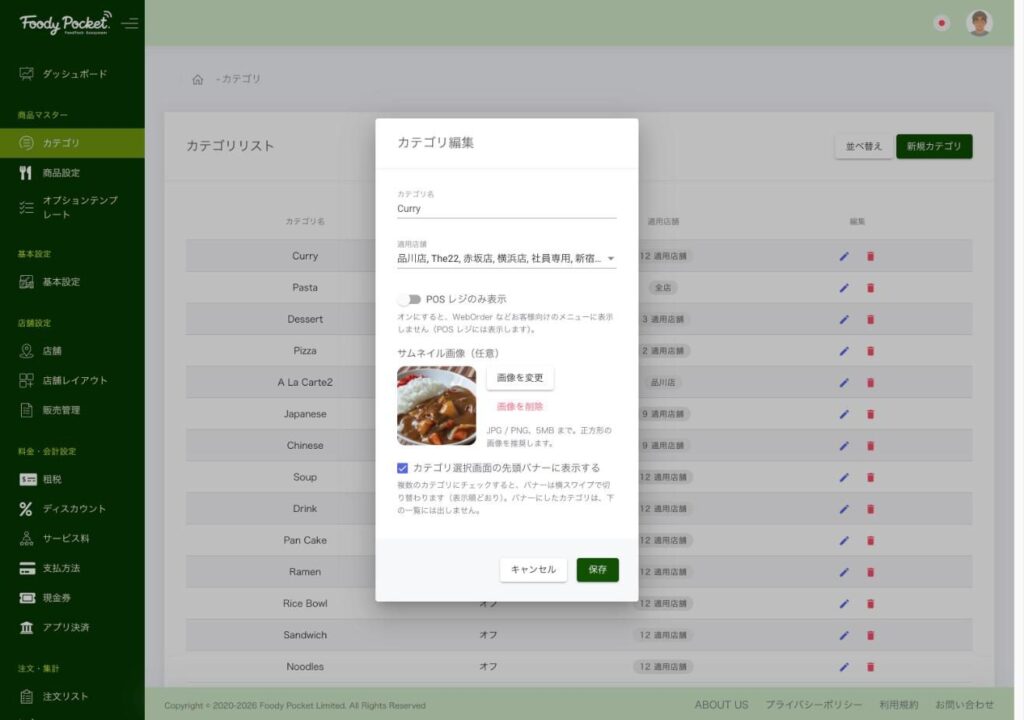
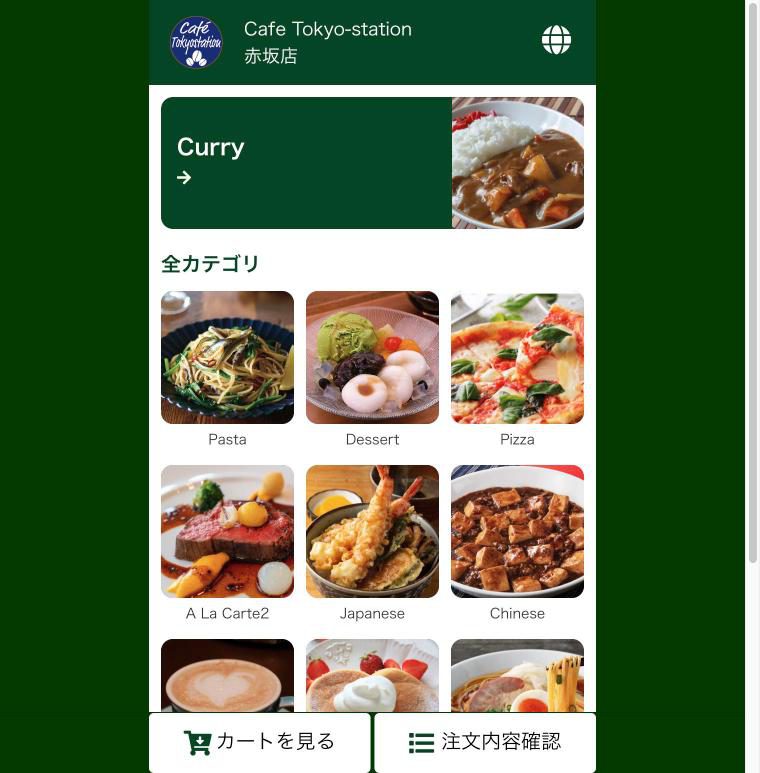
A category set to “POS register only” does not appear in WebOrder. You can add an image to a category and choose categories to show as the top banner in WebOrder.
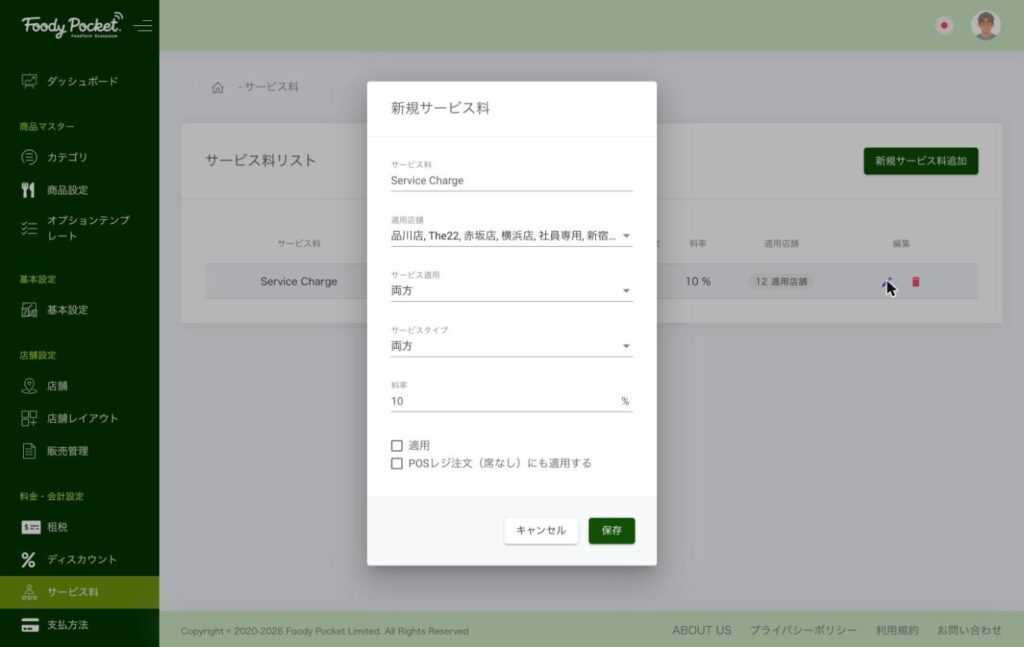
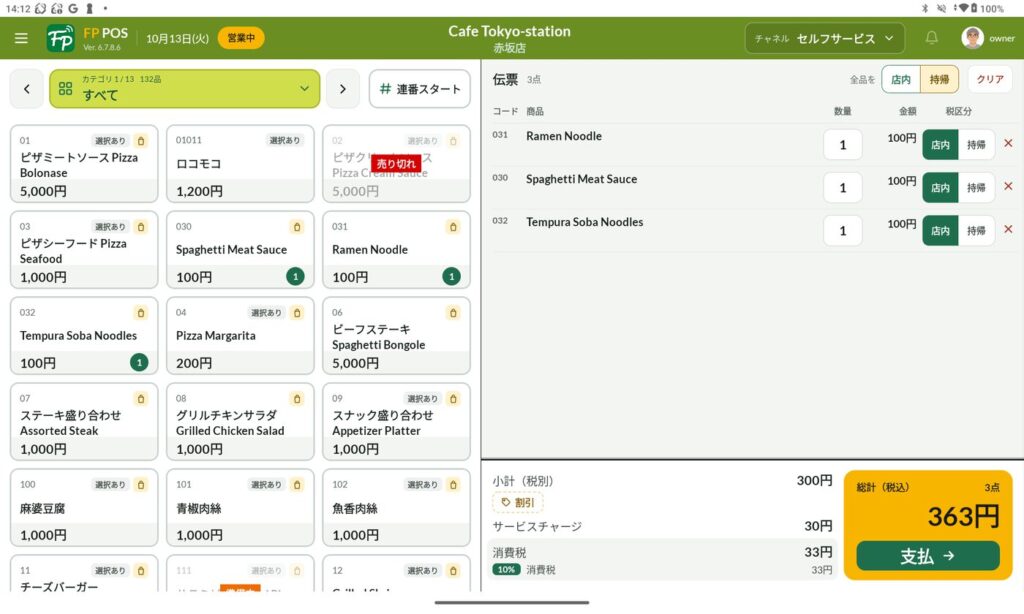
The service charge settings in the Admin Console have a new item, “Also apply to POS register orders (no seat)”. When it is ON, the service charge is applied automatically to Self-Service orders (register orders without a seat), and a “Service charge” line appears in the totals on the register screen. The setting is made in the Admin Console; there is nothing to choose per order on the POS register screen.
サービス料の設定ダイアログ。「POSレジ注文(席なし)にも適用する」のチェックPOS のレジ(セルフサービス)画面。設定を ON にすると、合計欄に「サービスチャージ」の行が表示される
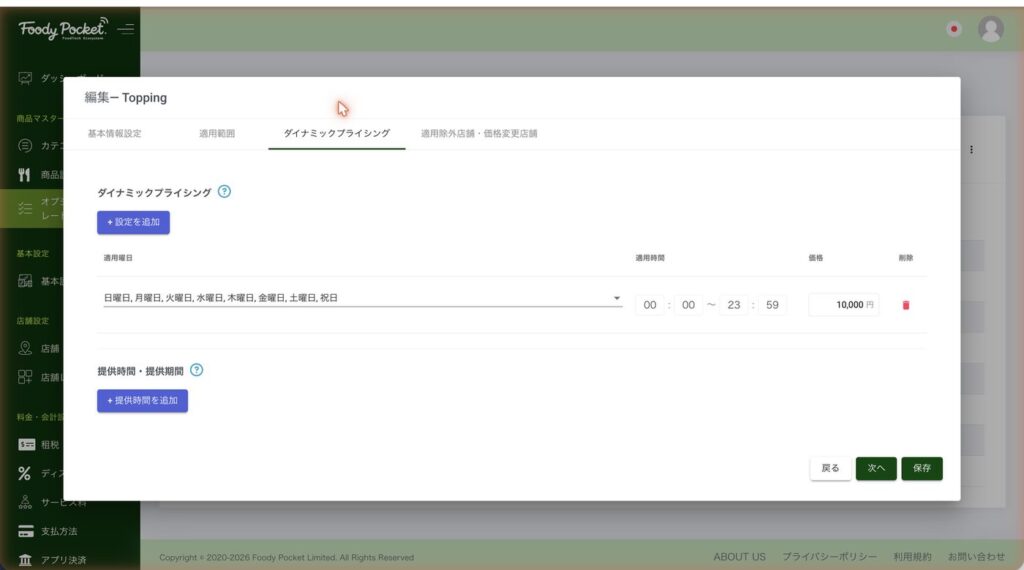
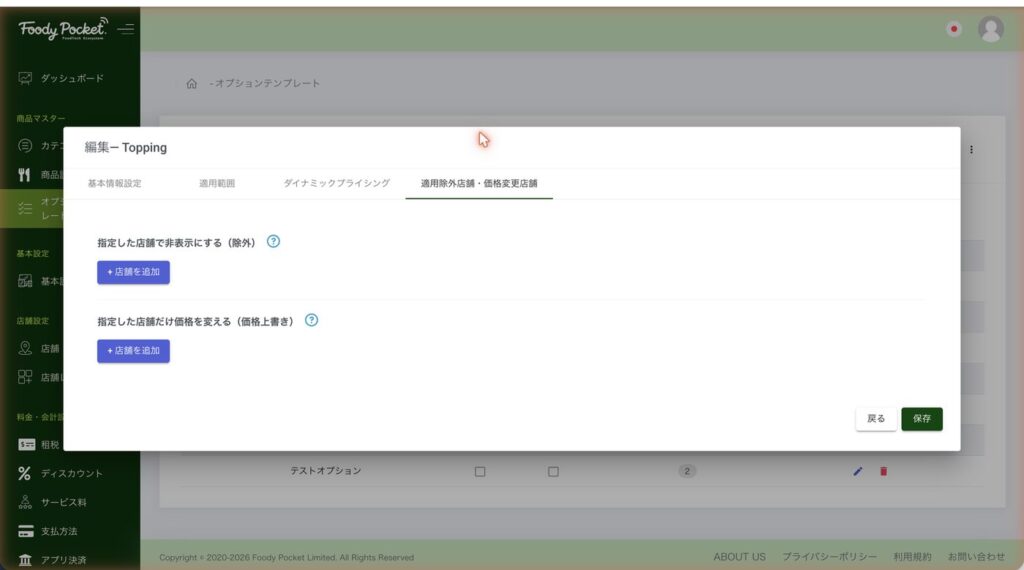
「商品設定」「編集」のダイアログの見出しに、編集している商品・オプションの名前を表示します。
ダイナミックプライシングのタブの説明を「?」から開けるようにし、レイアウトを整えました。
The title of the “Dish settings” and “Edit” dialogs shows the name of the dish or option you are editing. The Dynamic Pricing tab’s help now opens from the “?” icon, and the layout was tidied.
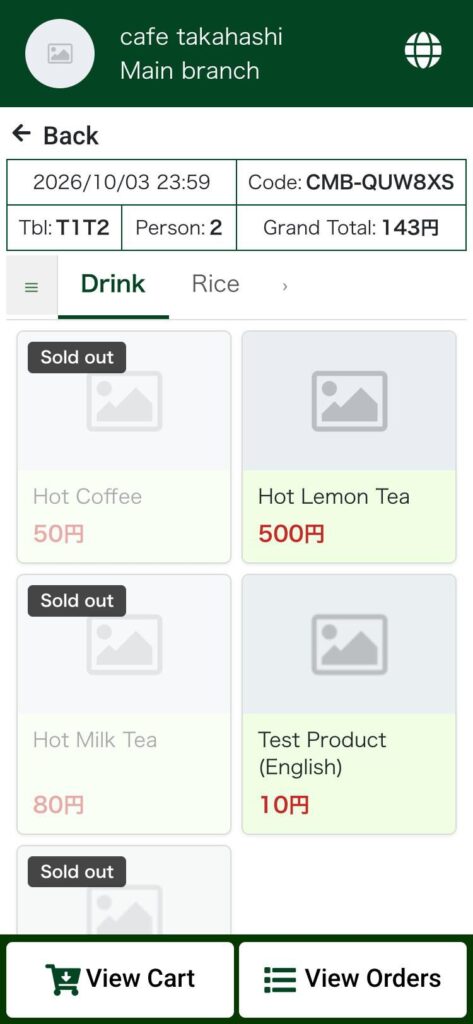
Dishes set to “Sold out” or “Preparing” on the POS stay on the menu with a label. They cannot be ordered when tapped. Option choices are shown in the same way.
WebOrder のメニュー(英語表示の画面)。売り切れの商品に Sold out の札が付き、薄く表示される
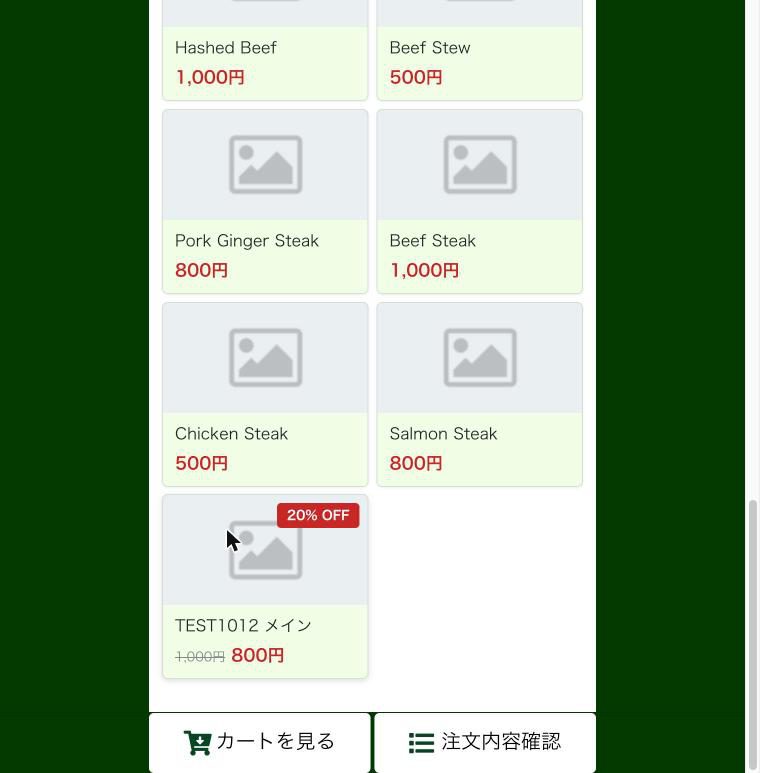
For dishes covered by an automatic discount (default discount), the menu card shows a badge such as “20% OFF” and the discounted price. A default discount limited to certain dishes now also applies to WebOrder orders.
WebOrder のメニュー。割引対象の商品に 20% OFF のバッジと、1,000円から 800円への価格表示
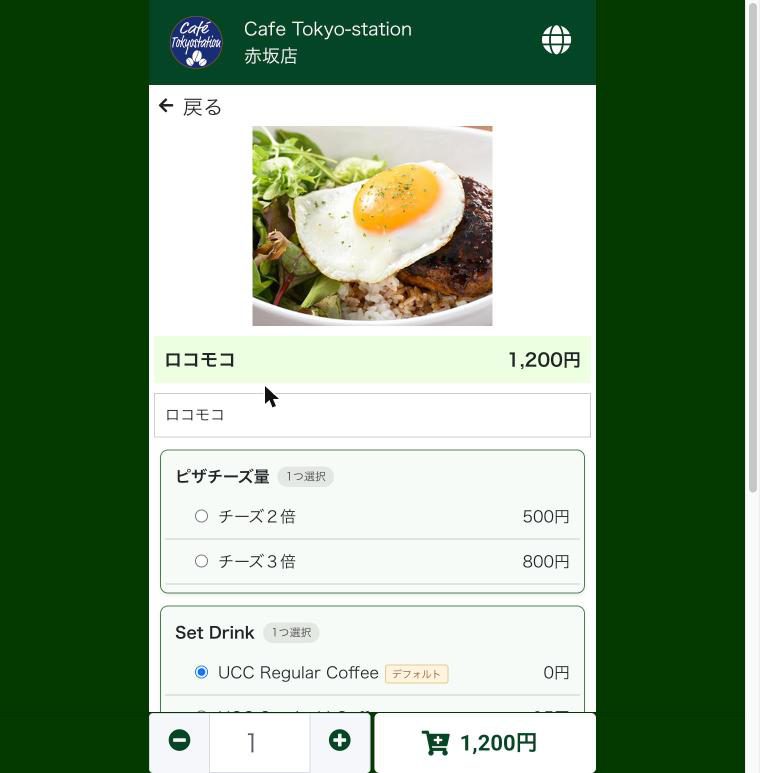
On the dish detail screen, the checkbox on the option heading was removed, and customers choose the option choices directly. A required option must be chosen before the dish can be added to the cart.
WebOrder の商品詳細。オプションの見出しにチェックがなく、選択肢を直接選ぶ
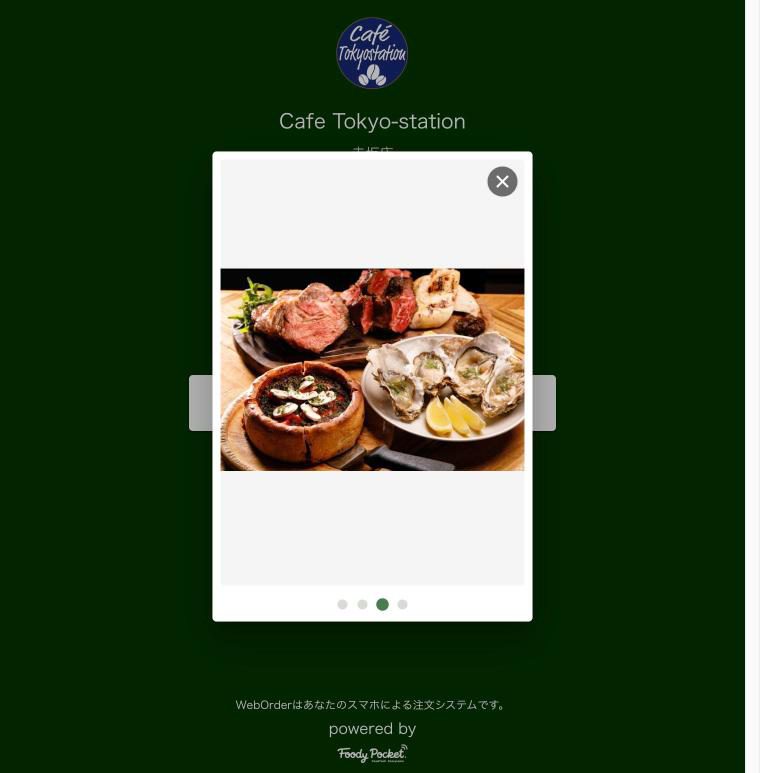
NEW開始画面の広告を閉じる「×」
開始画面の広告で、閉じる「×」を画像の右上に見える形で置きました。
The “×” button to close the ad on the start screen is now placed clearly at the top right of the image.
No responses yet